Navigation Feature User Guide
This document helps you quickly use the Navigation feature, including voice dialog, device selection, navigation item setup, and waypoint configuration/execution.
1. Quick Start
-
1
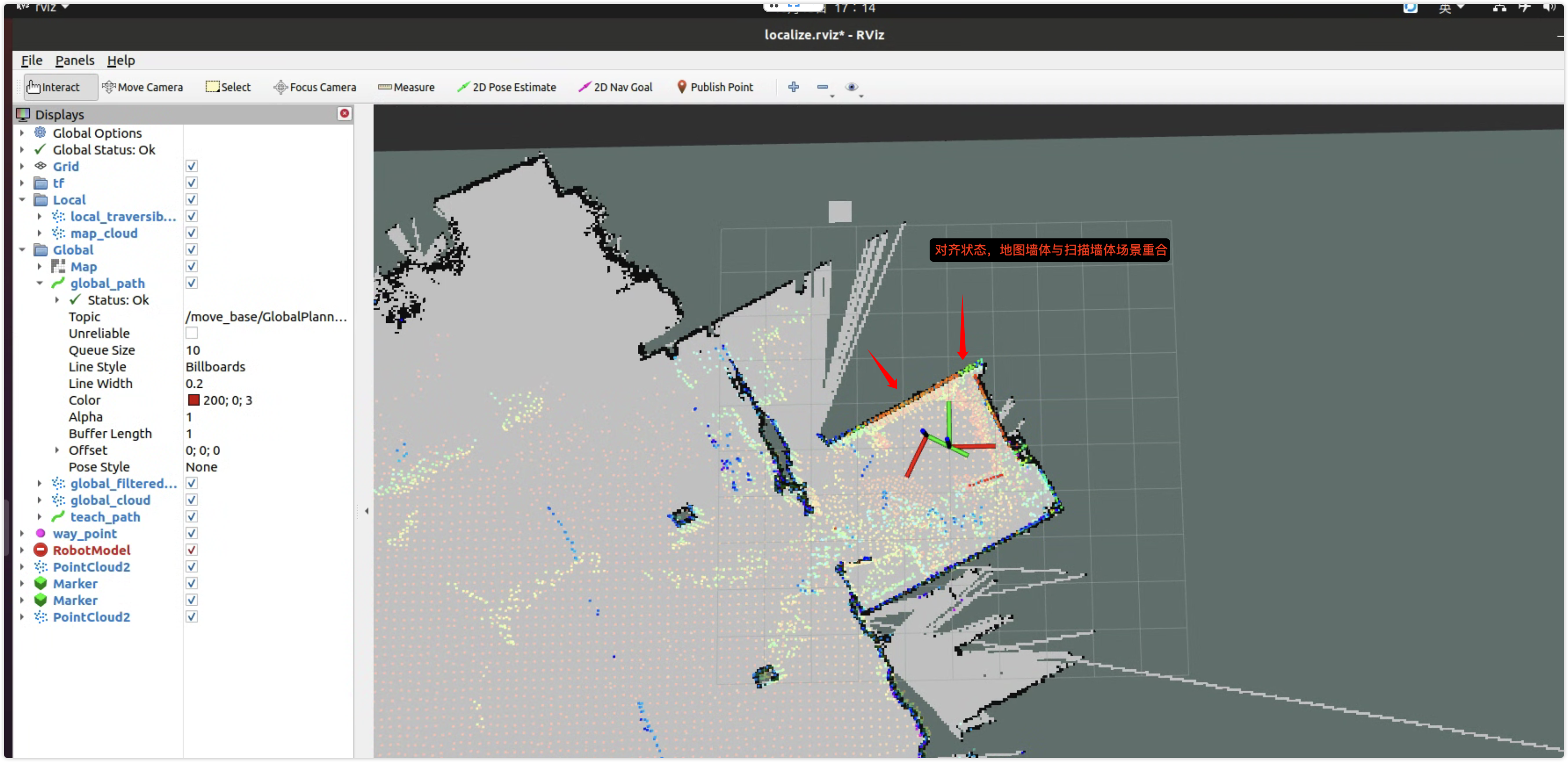
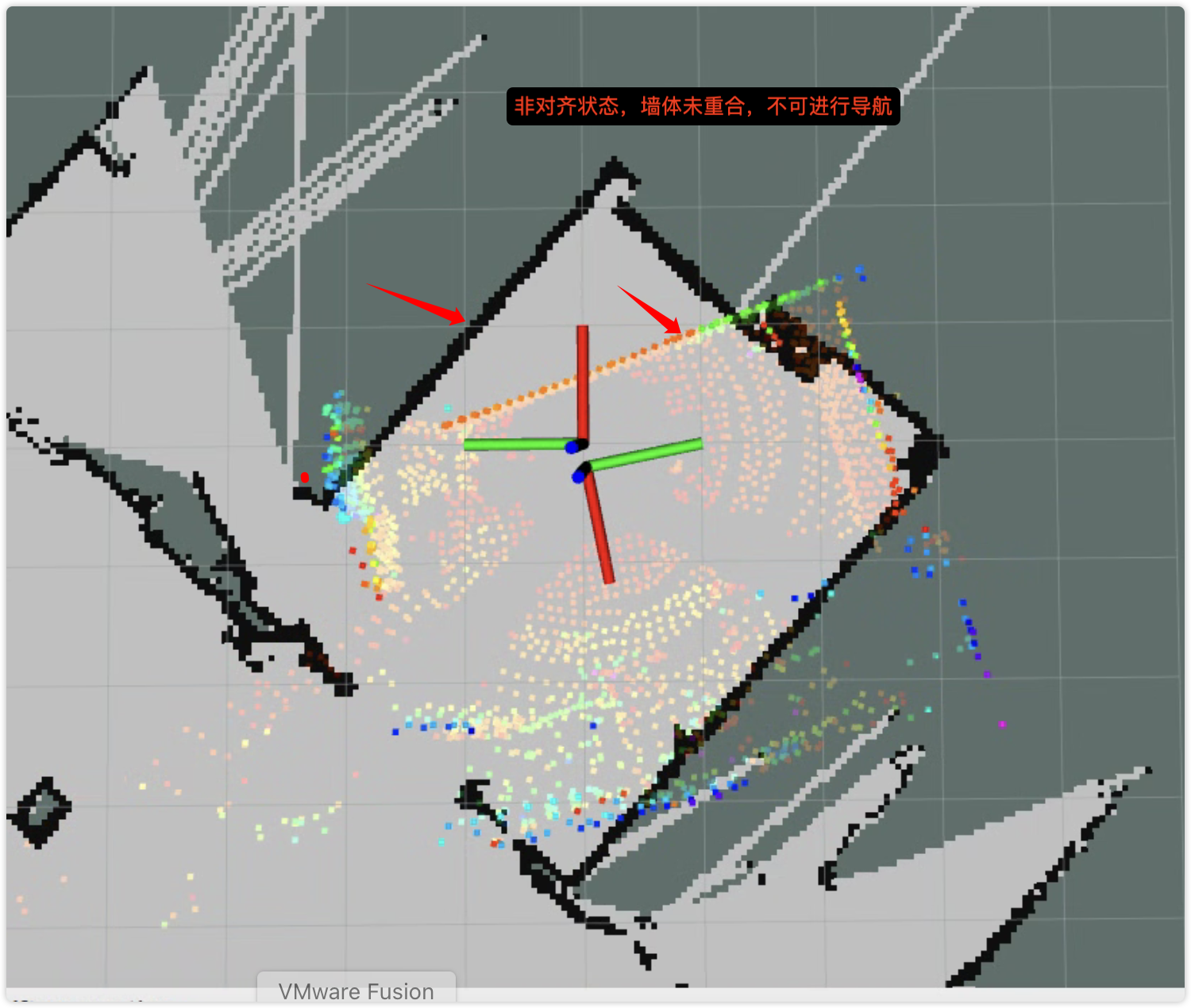
Start navigation and complete localization Tablet-side Operation Guide · Map Tap LocalizationStart navigation first, then complete localization (mandatory). You can use 2D Pose Estimate on the tablet, or tap Locate on the APP live map and pick a point.If localization fails (LiDAR point cloud not aligned with map walls), tour execution will fail.
-
2
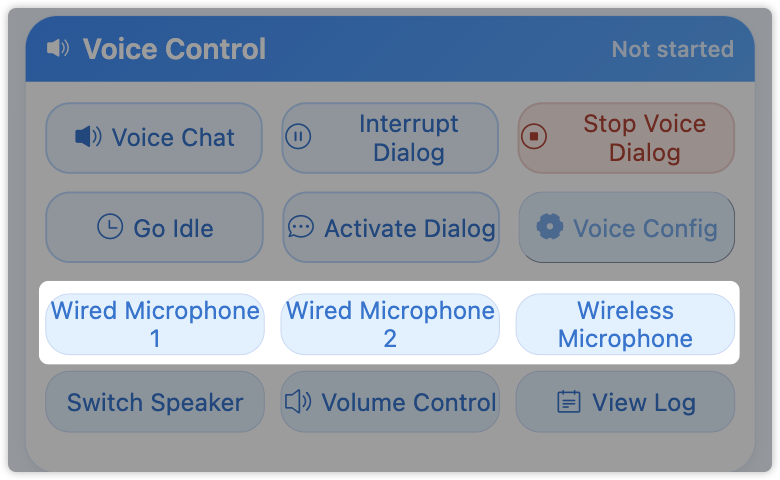
Select voice devicesOn this page, first complete microphone selection (wired or wireless) and Switch Speaker.After plugging/unplugging speaker/microphone or after reboot, click Switch Speaker again.
-
3
Start voice dialog (optional)Click Voice Dialog, then configure wake words in "Voice Settings".If you hear a response after speaking the wake word, voice is active. It enters standby after long inactivity; speak wake word again.
-
4
Run navigationCreate or select a navigation item, then click Execute.Before execution, ensure no other tour is running and tablet navigation is started and localized.
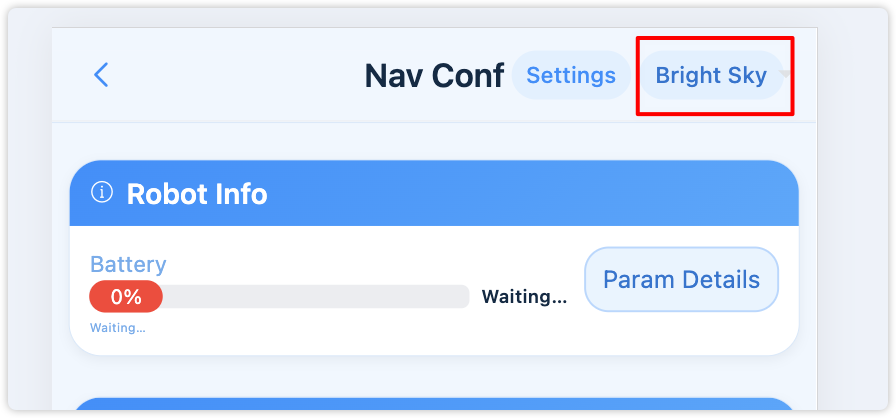
Theme Switch
The top bar provides a Theme Switch button. Click to choose themes (such as Warm Apricot or Sky Blue).
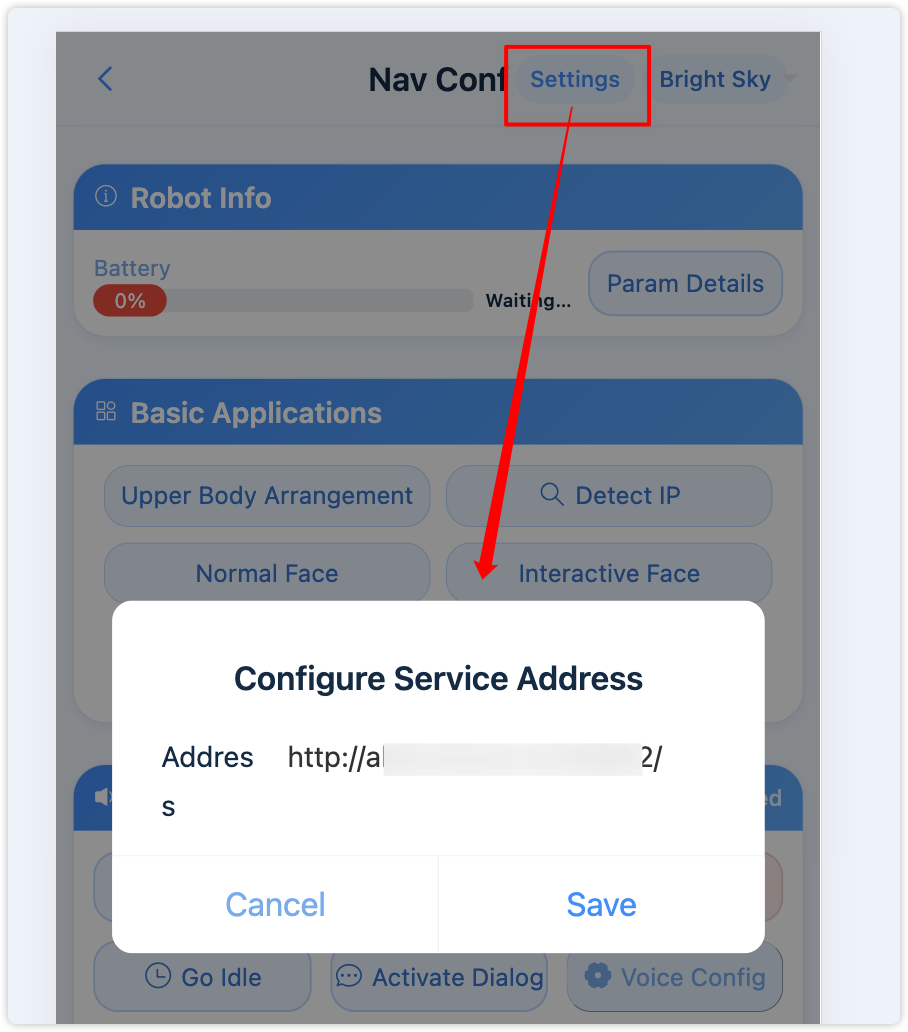
Top Settings (Service Address & Feature Activation)
- Click the top Settings button to configure robot service address (IP/domain).
- On first entry, the system can recommend a default IP based on the current access address and apply it with a countdown.
- You can enter activation codes for features (Dexterous Hand / Interactive Face / Navigation); changes take effect after page reload.
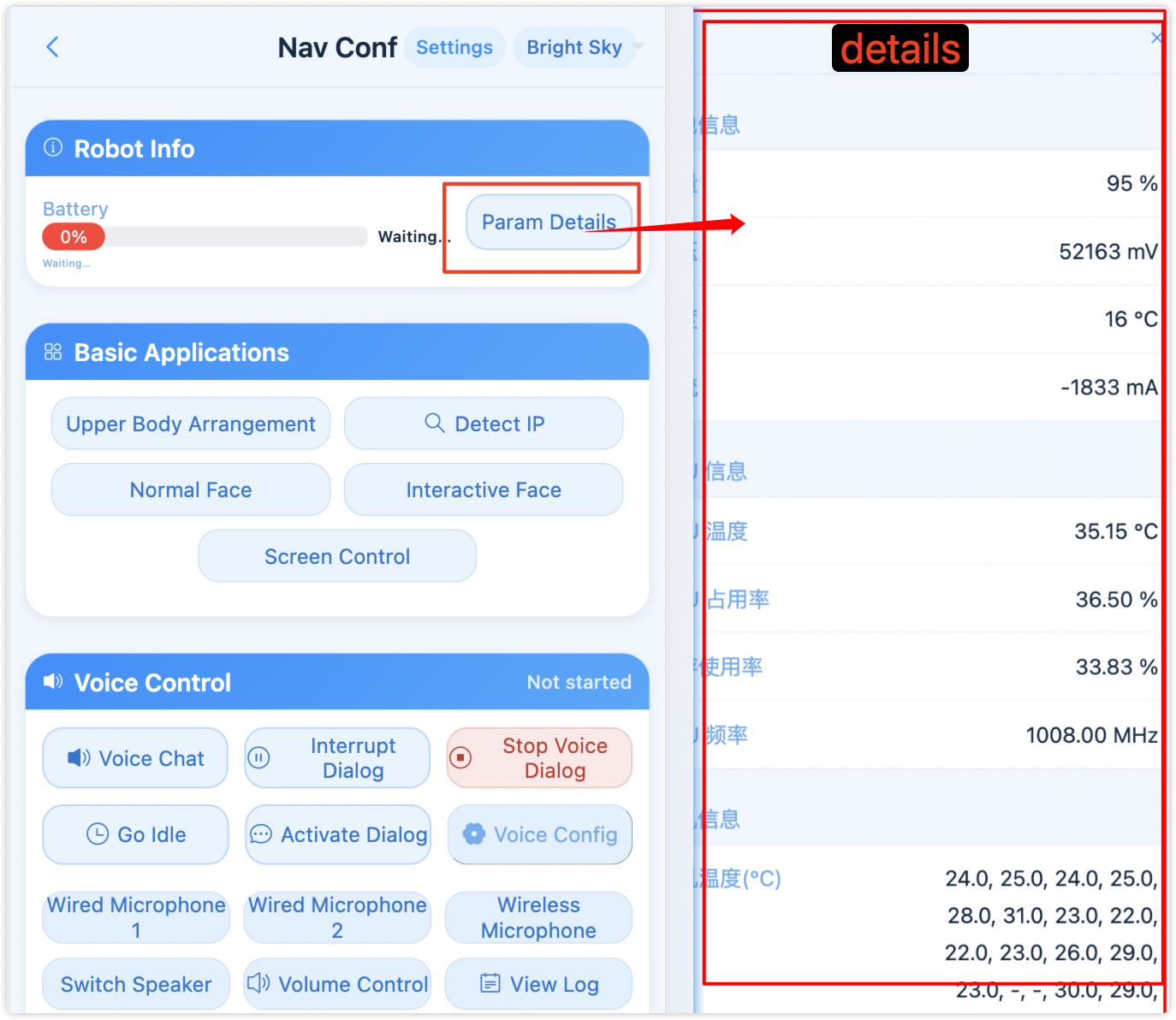
2. Robot Information Module (New)
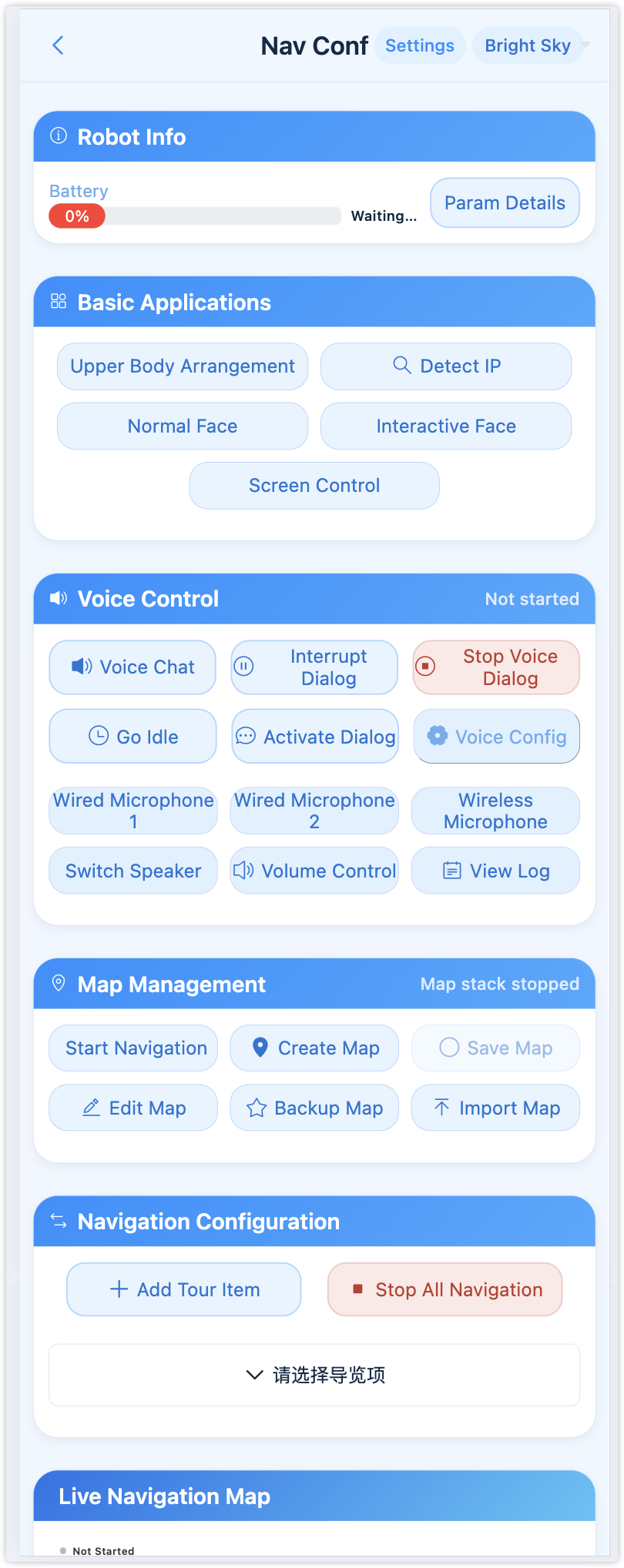
- Real-time Push: A "Robot Information" module is shown at the top and updates robot status in real time.
- Battery Display: Battery progress bar and percentage are shown for quick power checks.
- Low Battery Alert: When battery is below 20%, the bar turns red and an alert sound is played.
- Parameter Details: Click Parameter Details to view voltage, current, temperature, etc.
- Network Status Linkage: After starting voice dialog, real-time speed and latency appear near the module title.
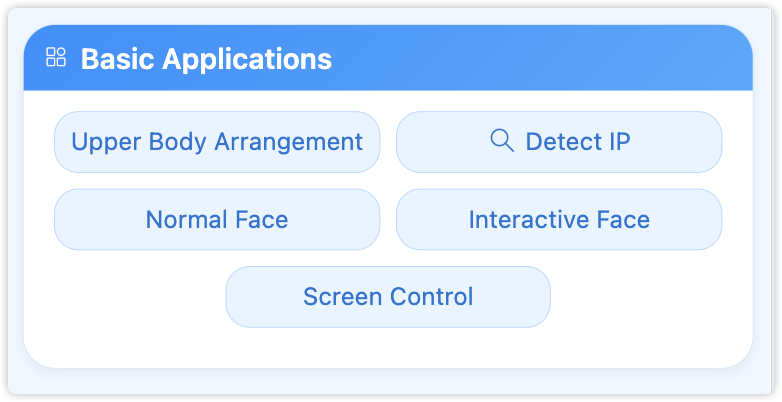
3. Basic Applications
- Upper-body choreography: Enter motion choreography system.
- Check IP: Detect device IP.
- Standard face: Enter standard face recognition.
- Interactive face: Enter dynamic face interaction mode (see "Other Feature Entrances").
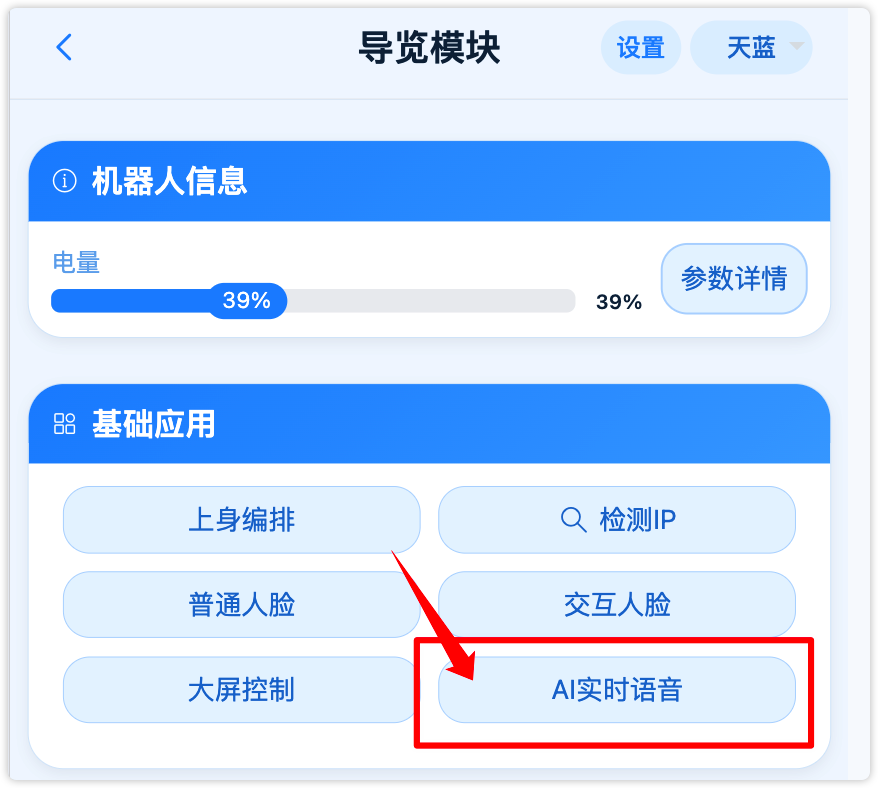
- AI Realtime Voice: Enter the realtime voice assistant (independent from "Voice Dialog" below). See the section below and the detailed guide AI Realtime Voice Guide (Chinese).
AI Realtime Voice
On the navigation page, in Basic Applications, tap AI Realtime Voice to open the assistant. It is independent from "Voice Dialog" below: faster response, barge-in, multilingual mixed conversation; with camera streaming enabled, the robot can also understand the scene ahead. Full setup and API Key registration: AI Realtime Voice Guide.
- Configure: Tap Config, enter a valid API Key, choose voice and role prompt, then save (see the guide’s API Key registration section if you do not have a key yet).
- Camera (optional): Turn on the Camera switch at the top of the page to stream the front view for vision-aware replies.
- Start / Stop: Tap Start; when status shows Started, speak to the robot. Tap Stop when finished.
4. Voice Dialog
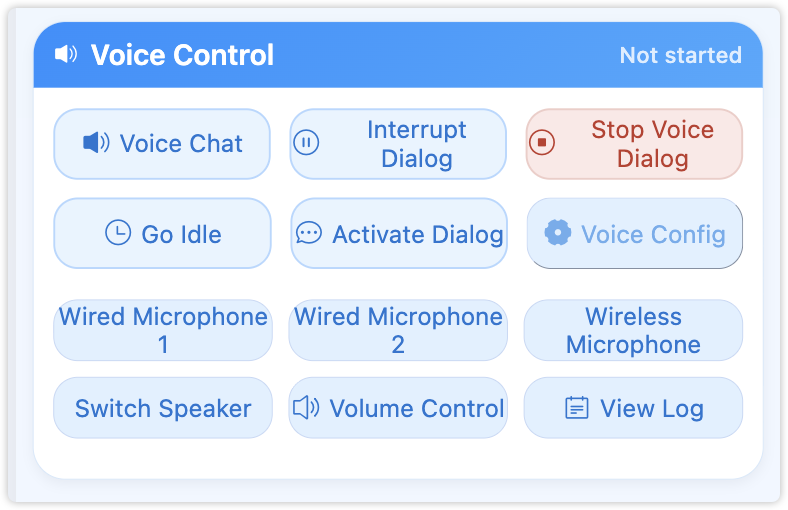
1) Voice Dialog Controls
- Click Voice Dialog: start robot voice dialog.
- Click Stop Dialog: stop voice dialog.
- Click Interrupt Dialog: interrupt current dialog.
- Click Enter Standby: put AI into standby; dynamic face interaction starts detection in this state.
- Click Activate Dialog: reactivate dialog.
2) Voice Settings and Wake Word
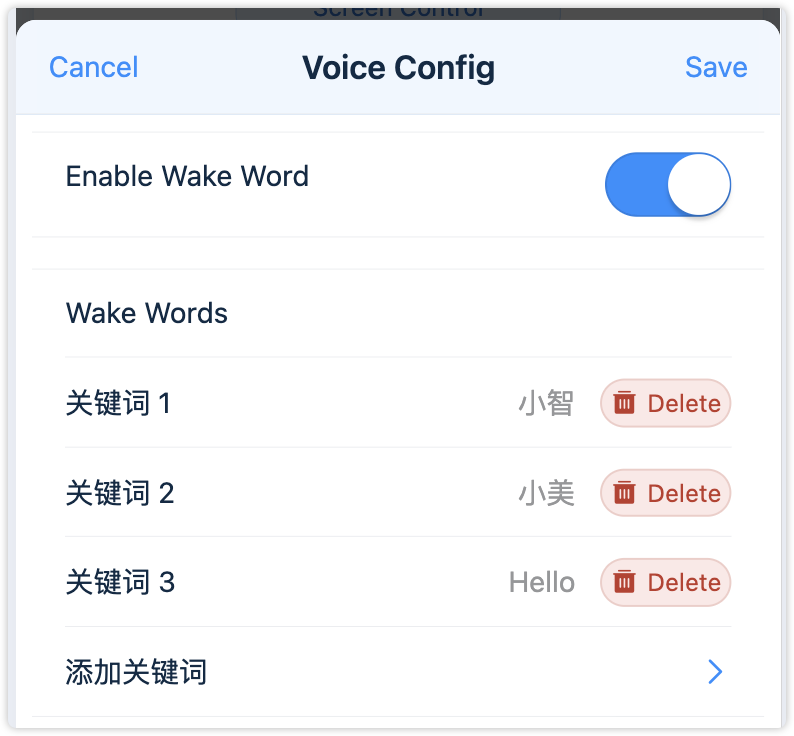
- Click Voice Settings to configure wake words.
- After voice dialog starts, speak the configured wake word to activate dialog.
- After long inactivity, the system enters standby and must be reactivated by wake word.
3) Notes for Voice Dialog
- Click View Logs to enter voice log details page (supports real-time refresh and scrolling).
- The voice log page filters network-monitor lines and limits total lines to avoid lag during long sessions.
5. Device Selection (Microphone & Speaker)
- Click Wired Mic 1 / Wired Mic 2 / Wireless Mic to switch mic input. The selected mic shows a blue checkmark.
- Click Switch Speaker to switch output device.
6. Map Management
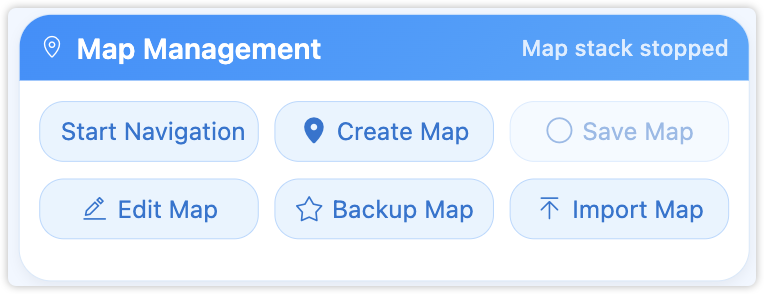
1) Start Navigation / Stop Navigation (New)
- Click Start Navigation to launch navigation on desktop (same as double-clicking desktop shortcut).
- Click Stop Navigation to stop desktop navigation and stack.
- Click Create Map to enter online mapping with real-time point cloud and pose view.
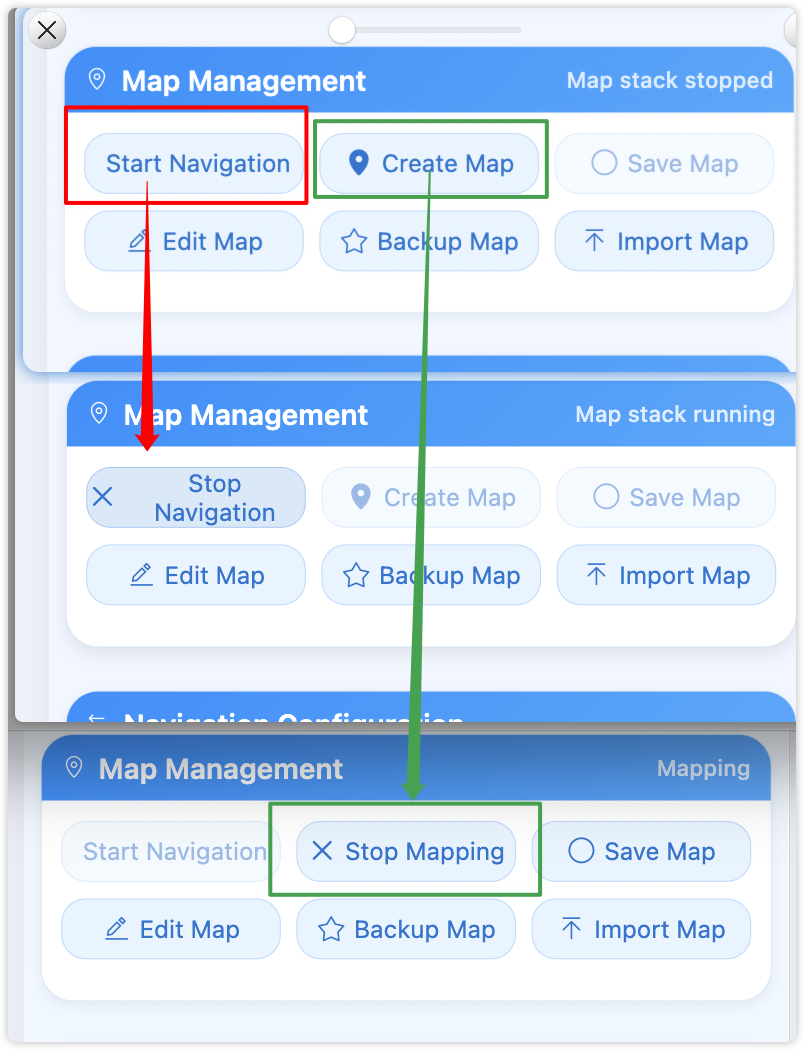
Create Map Page (enter via "Create Map")
- Opens full-screen mapping view with real-time map, point cloud and pose changes.
- Supports drag to pan and two-finger zoom for detailed inspection while scanning on site.
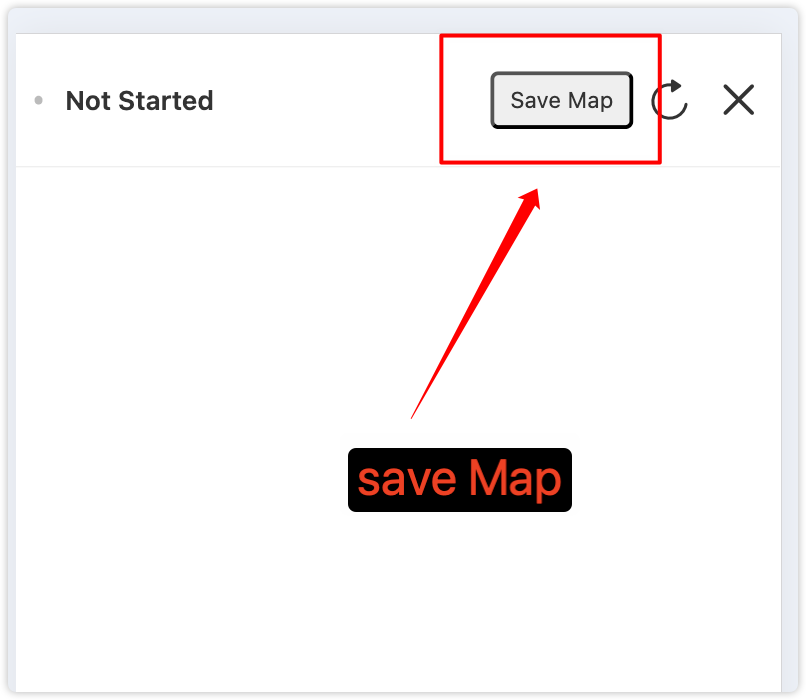
- The top bar provides Save Map; no need to exit before saving.
- Complete full-area scan and verify wall closure before saving.
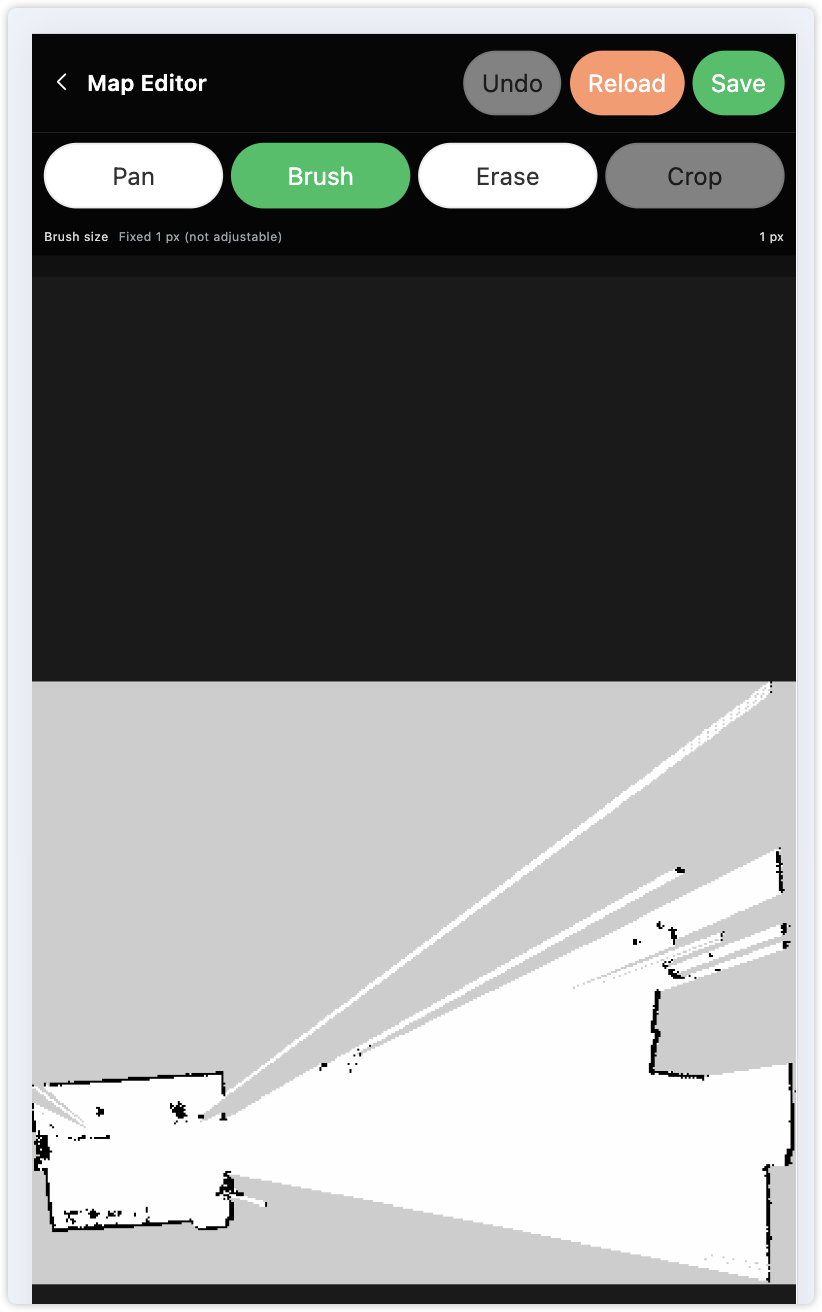
Edit Map Page (enter via "Edit Map")
- Pan mode: browse map without modifying grid data.
- Erase mode: clean noise and temporary obstacles; drag for continuous erase.
- Draw obstacle mode: add fixed obstacle boundaries (use cautiously).
- Cursor/brush size: adjustable in erase mode (pixels); test small area first.
- Undo / Reload / Save: undo previous edit, reload original map, and save current edits.
- Crop function: currently disabled; do not rely on it for formal editing.
2) Save Map
- Click Save Map and confirm to save current map.
- Map results are saved to system storage. Always save map first after mapping is complete.
3) Backup Map
- Click Backup Map to open the backup dialog.
- Enter a backup name (must be unique).
- Click "Start Backup" in top-right. The system backs up:
- Map files (map directory)
- Config files (config directory)
- Path files (path directory)
- Point cloud files (PCD directory)
- After completion, all backups (name and creation time) are visible in backup list.
4) Import Map
- Click Import Map to open import dialog.
- Select a backup record in the list (or click "Select Backup").
- After confirmation, click "Start Import" in the top-right corner.
- Confirm prompt; all map-related data of selected backup will be restored automatically.
- Current map/config/path/point-cloud data will be replaced by backup content.
5) Delete Backup
- In backup dialog, click the Delete button at the right side of a backup record.
- Deletion is irreversible. Proceed with caution.
7. Navigation Items
1) Add Navigation Item
- Click + Add Navigation Item.
- Set Chinese Name, English Name (letters only), and trigger keywords.
- Optionally enable the item and configure Loop Navigation (see next section).
- After saving, the item is created and enabled by default.
2) Loop Navigation
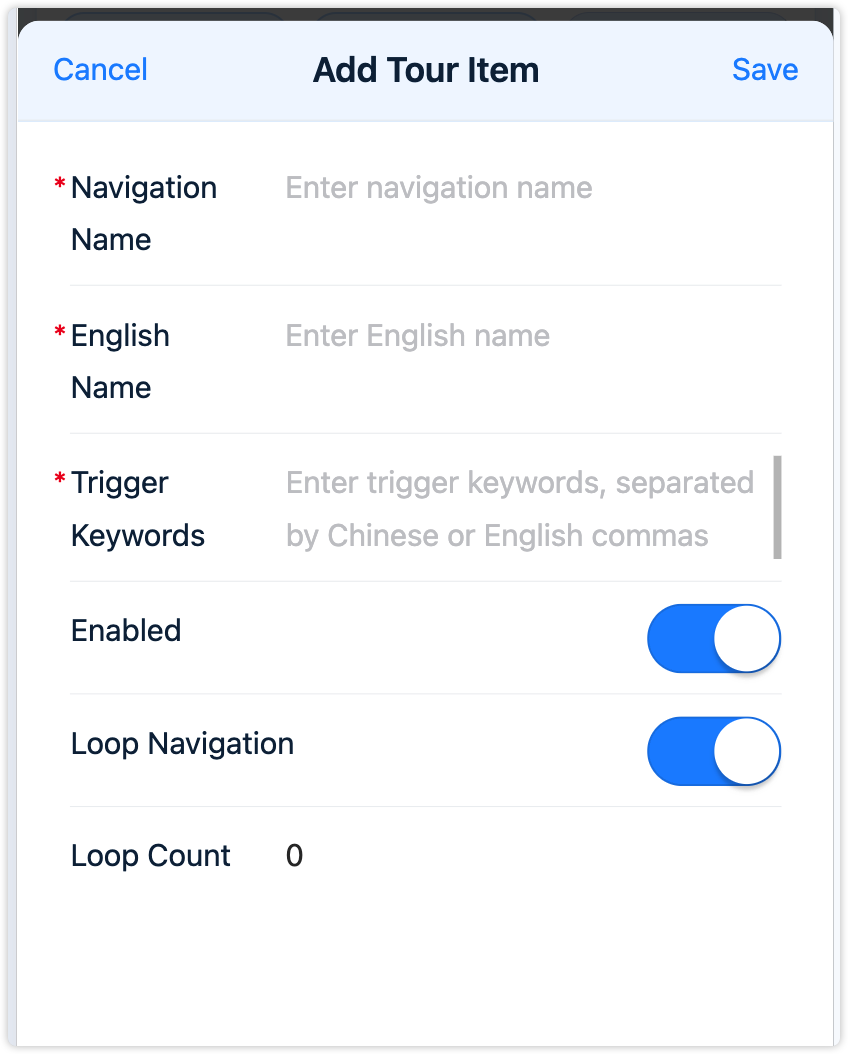
In the Add / Edit Navigation Item dialog, turn on Loop Navigation to repeat the full route after all waypoints are completed (then restart from the beginning).
- Loop Navigation switch: when off, the tour runs once and ends; the list summary shows “No Loop”.
- Loop Count: editable only when Loop Navigation is on. Meaning:
- 0: no repeat (one round only).
- 1: run once more (2 rounds in total).
- N: loop N more times (N+1 rounds in total).
- Turning Loop Navigation off and saving resets Loop Count to 0.
- The navigation item list shows a loop summary such as “Loop 2 time(s)” or “No Loop” for quick checking.
3) Trigger Keywords
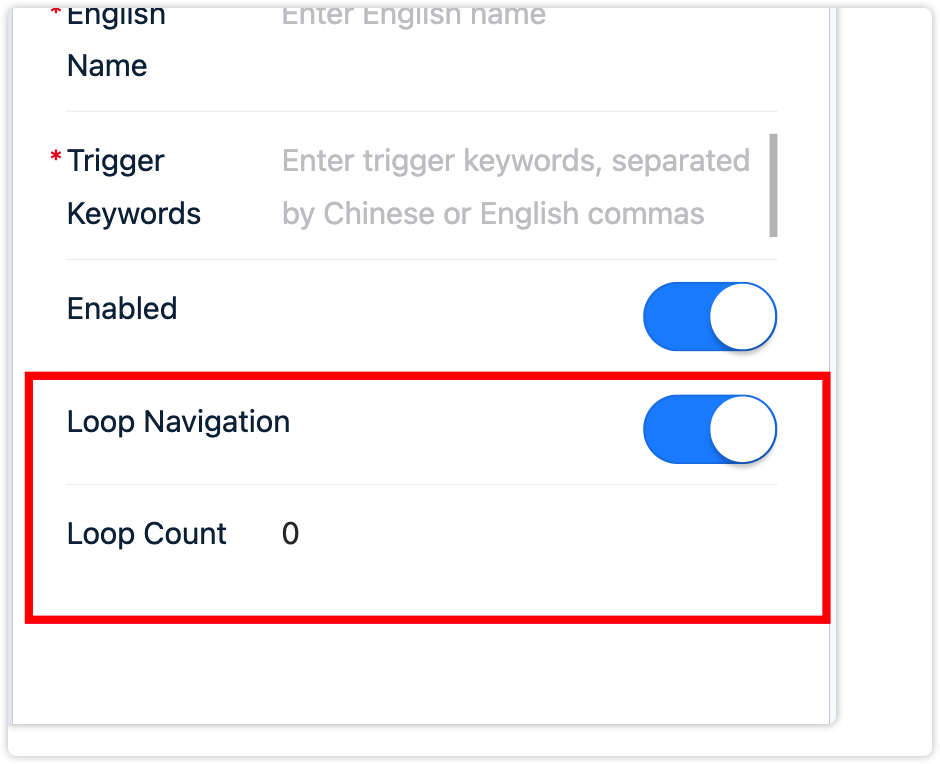
When voice dialog is active, speaking the configured keyword in conversation triggers auto-start of that navigation item (navigation must be started and localized on the computer first).
4) Edit / Delete / Execute
- After expanding an item, you can edit or delete it.
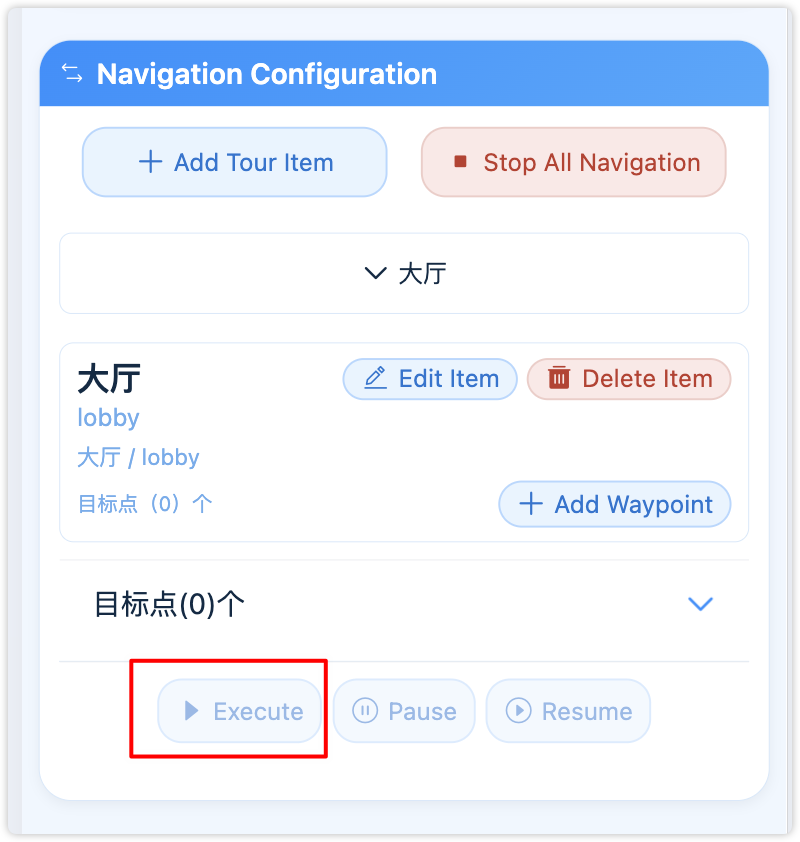
- Click Execute to run this item.
- Before execution, click Start Navigation in Map module and confirm localization success.
- Also confirm no other item is running and tablet navigation is started/localized.
- During execution, use Pause and Resume for control.
- Click Stop All Navigation to stop current tours and desktop navigation.
8. Waypoints
1) Add and View
After expanding a navigation item, you can add multiple waypoints (single-point or multi-point; make sure map is started and localization succeeds first).
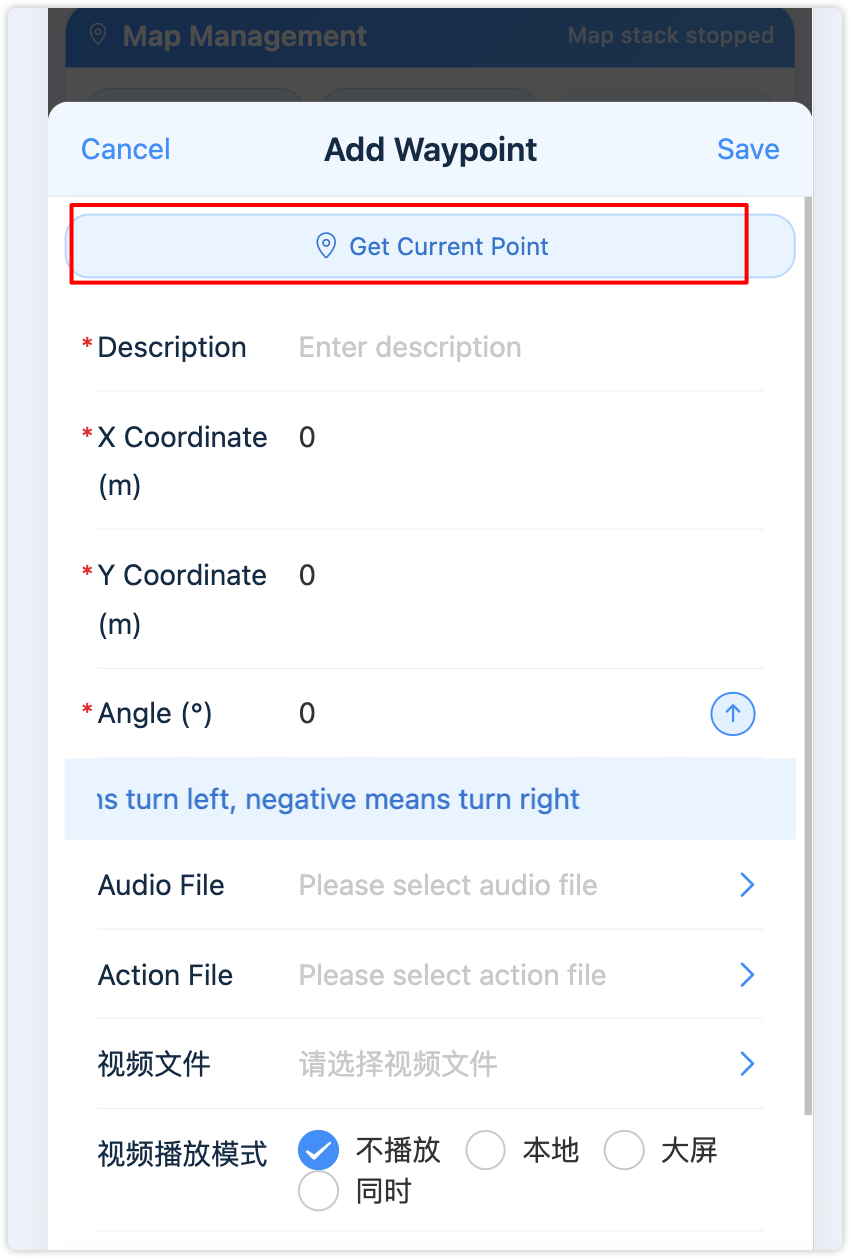
Recommended method: Move robot to target waypoint and click Get Current Position in waypoint editor to auto-fill X/Y/angle.
- Move robot to target position and confirm facing direction.
- Open waypoint edit dialog.
- Click Get Current Position to auto-fill coordinates and angle.
- Review and save.
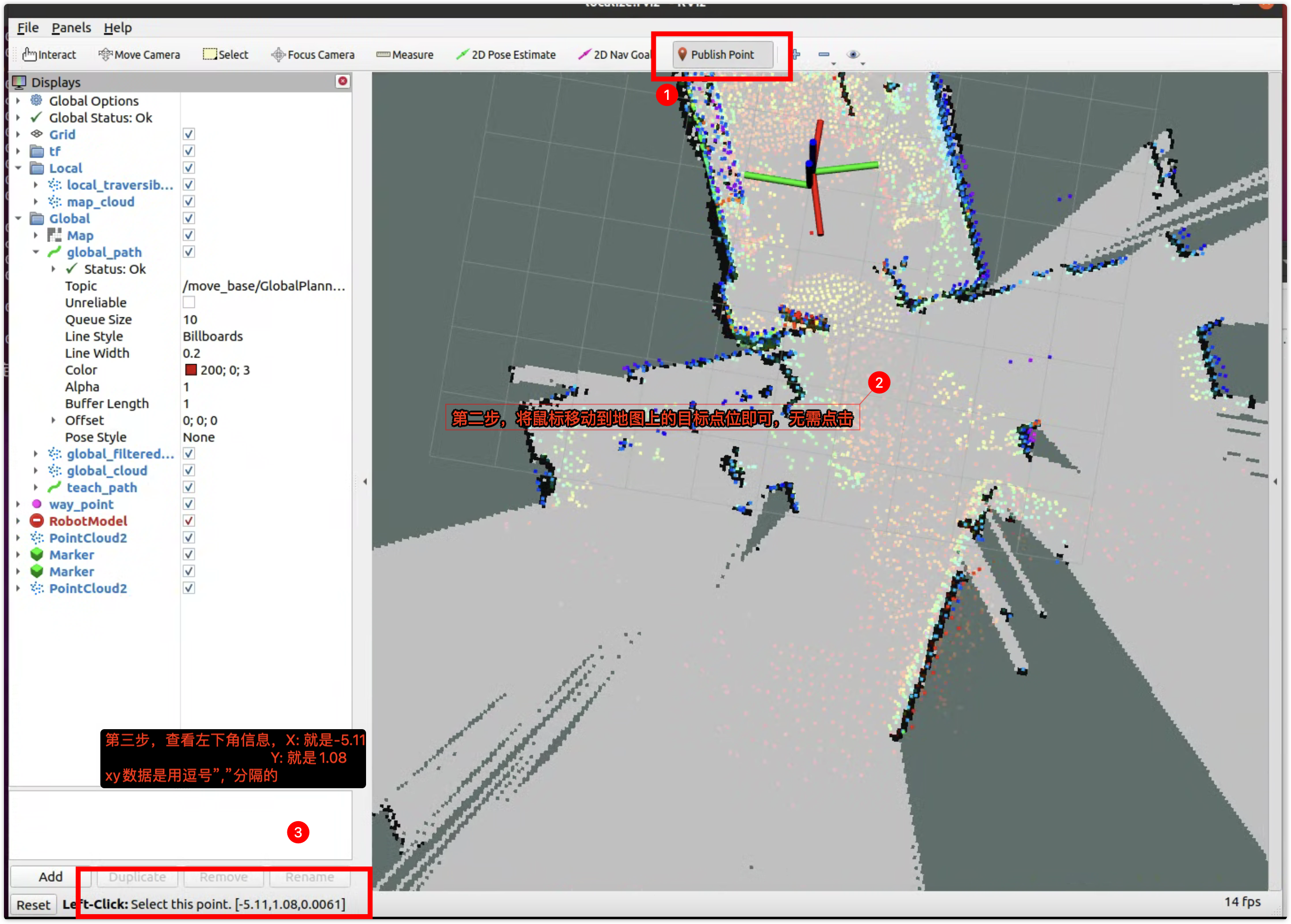
Alternative method: Read coordinates via Publish Point in navigation view and fill manually.
- Click Publish Point on toolbar.
- Move mouse to target point on map (no click required).
- Read X/Y in lower-left coordinate area and fill manually; enter angle according to on-site pose.
2) Parameter Description
- X / Y / Angle: required. Recommended to auto-fill via "Get Current Position", or manually via Publish Point. Angle range: -180 to 180.
- Wait Time (sec): optional. Robot wait duration after arrival; should match audio/action duration if possible.
- Audio File: upload MP3 for auto-play on arrival; if no sound, click "Switch Speaker".
- Video File: upload one video file; saved as waypoint video resource and played by selected mode.
- Video Play Mode: supports "None / Local / Big Screen / Both". If unset after upload, default switches to "Both".
- Video Title: optional title shown on big screen.
- Action File: choose action to execute on arrival; finger timelines can be configured in choreography tools.
- Description: text note for this waypoint.
3) Edit, Insert, and Delete
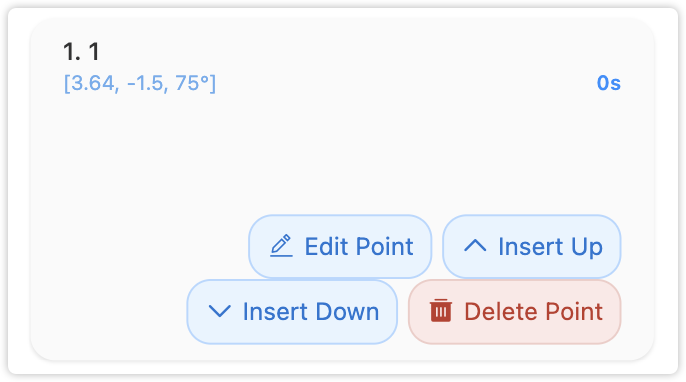
Each waypoint card provides these actions:
- Edit: edit all waypoint parameters (coordinates, angle, wait time, audio, action, description).
- Insert: duplicate current waypoint and insert above or below.
- Click upper-arrow insert icon to insert a duplicated waypoint above.
- Click lower-arrow insert icon to insert a duplicated waypoint below.
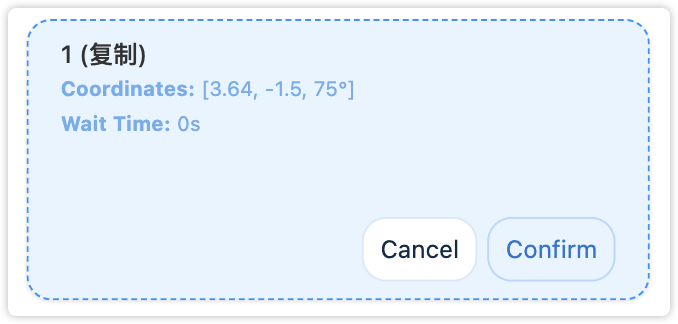
- Duplicated waypoint copies X/Y/angle, wait time, and description. Wait time resets to 0; audio/video/action are emptied; video mode resets to "None".
- After insertion, a blue-dashed preview card appears with Cancel and Confirm.
- Click Confirm to save insertion to backend.
- Click Cancel to cancel insertion.
- Delete: delete this waypoint (with confirmation).
9. Live Navigation Map (New)
- The page bottom provides a Live Navigation Map module to view status, progress, route, point cloud, and robot pose.
- When no navigation is running, all waypoints are shown; different items use different colors and sequence labels.
- Click map to enter full-screen mode; supports rotation, drag, and pinch zoom.
- In full-screen mode, you can execute, pause, resume, or stop navigation directly.
- The full-screen mapping page also supports real-time mapping preview and direct map saving.
- Supports Map Tap Localization (see below), so you do not need to use tablet 2D Pose Estimate every time.
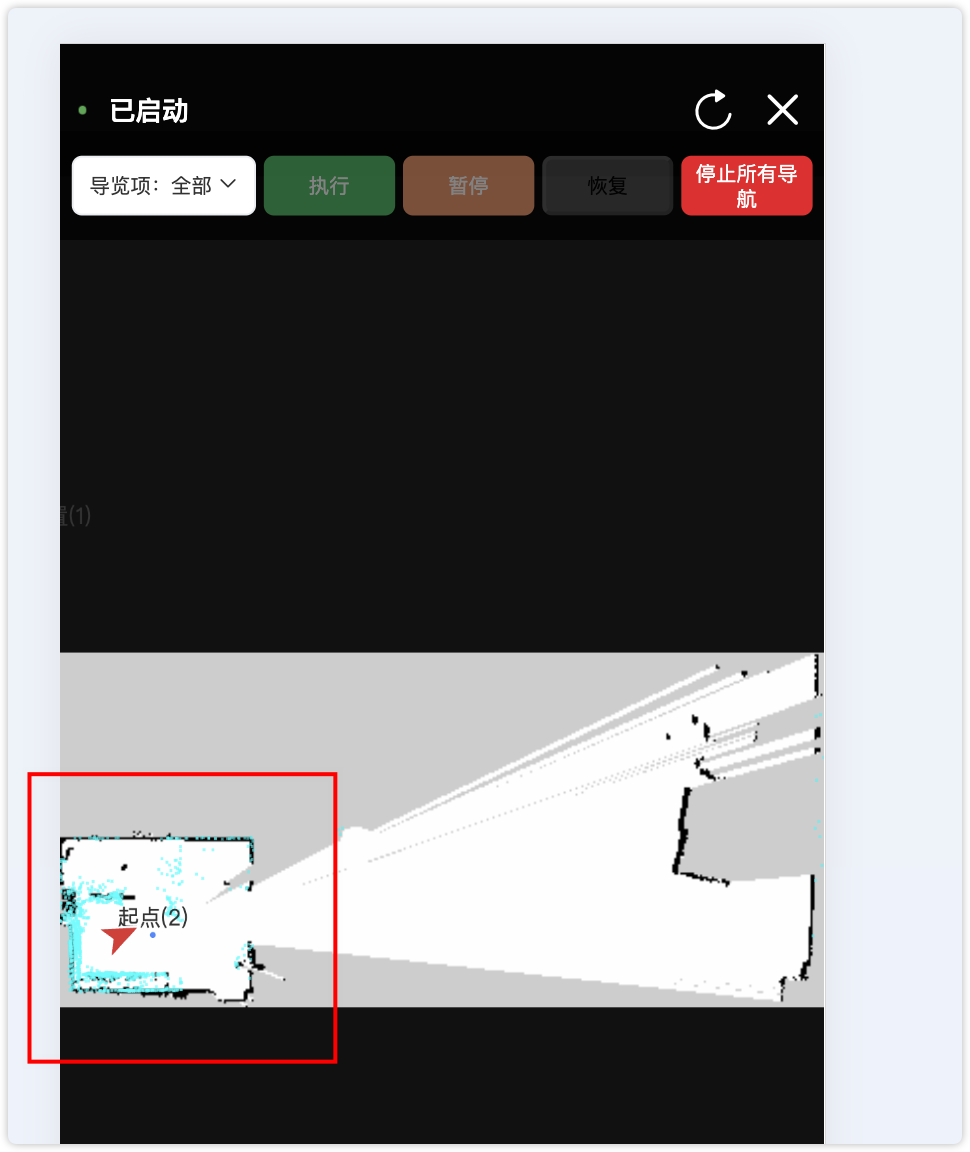
Map Tap Localization (New)
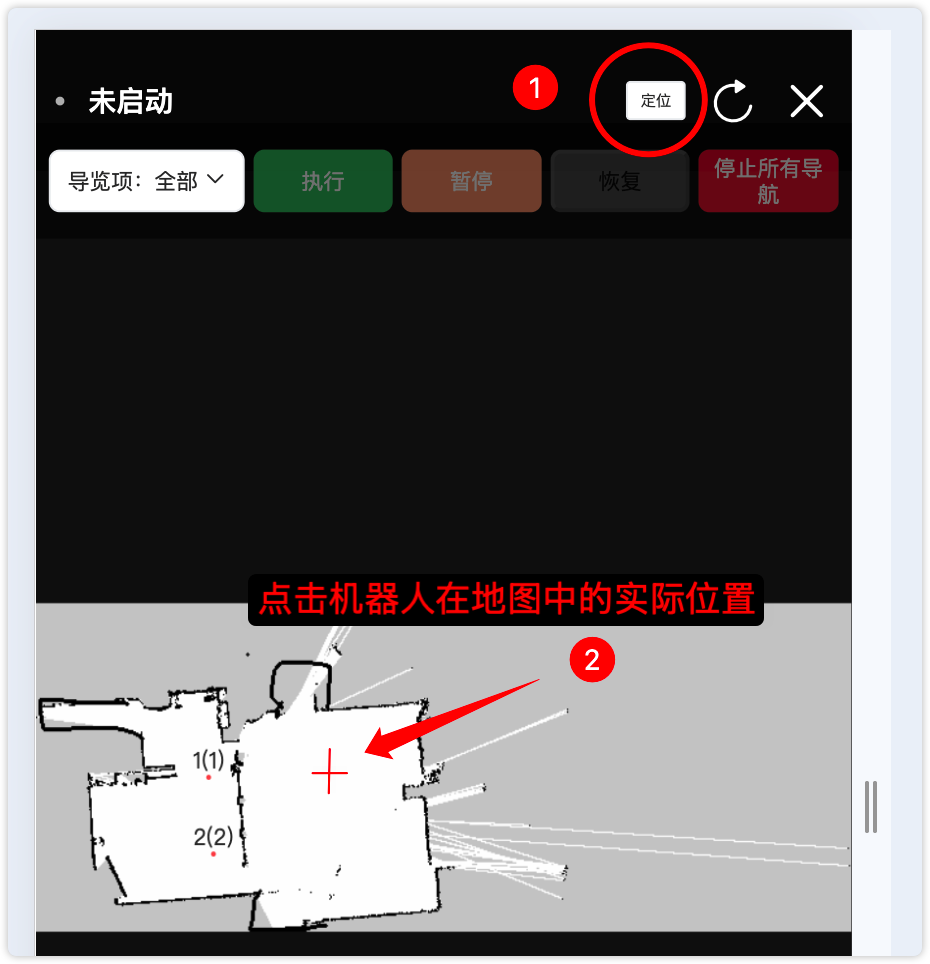
When navigation is running but localization is not aligned (or after the robot has been moved), you can tap the robot’s approximate position on the APP / big-screen live map to start relocalization. The system estimates orientation automatically from the tap; you do not need to enter yaw manually.
- Confirm you have clicked Start Navigation, and the map / LiDAR point cloud is refreshing.
- Open the live map full-screen page (or the big-screen “Map Navigation” module).
- Tap Locate in the top-right; the button becomes Tap map to locate and enters pick mode (cursor becomes a crosshair).
- Tap on the map near the robot’s actual current position (stay close to the real spot; do not tap outside walls or in another room).
- After “Localizing…”, a success toast such as “Localization requested” appears and pick mode exits; check whether the point cloud aligns with the walls.
- If still misaligned, tap Locate again and pick a more accurate point, or move the robot a little and retry.
- You must Start Navigation before map tap localization; the mapping page does not provide this button.
- Tap near the robot’s real position; a large offset may cause failure or wrong alignment.
- Success means the colored LiDAR point cloud roughly overlaps map walls, and the red arrow matches the robot heading.
- You can still use tablet RViz 2D Pose Estimate (see “Tablet-side User Guide” below); either method is fine.
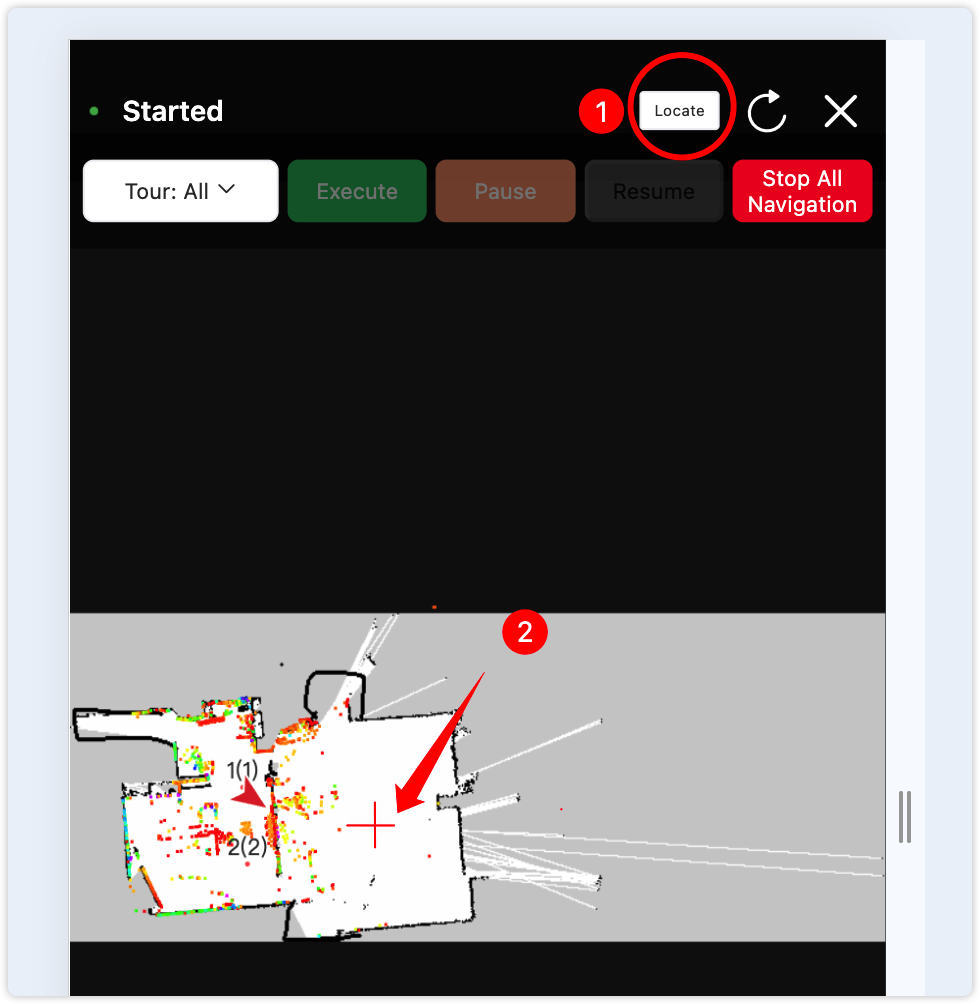
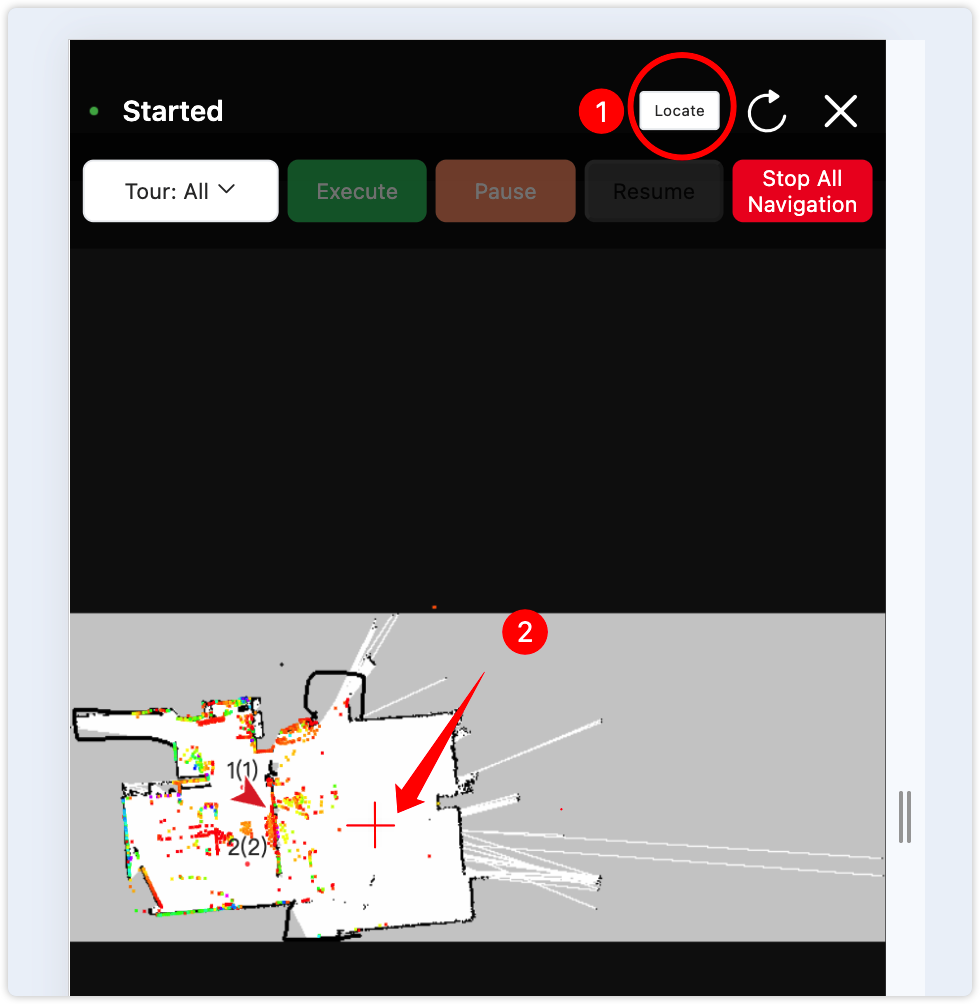
After successful localization, the LiDAR point cloud should align with map walls. See Figure X-4 Live navigation map above for reference.
10. FAQ
- Execution failed: start navigation and complete localization first (APP Map Tap Localization or tablet 2D Pose Estimate); ensure no other item is running.
- Map tap localization failed / still misaligned: confirm navigation is started; tap near the robot’s real position; move/rotate a little then tap again; for large errors use tablet 2D Pose Estimate.
- No voice response: confirm "Start Voice" was clicked; check mic selection and speaker switch; switch speaker again after replugging devices.
- No sound: click "Switch Speaker" and retry; confirm audio file exists and format is correct.
- Waypoint video not playing: check video file upload and ensure play mode is not "None"; for big-screen mode verify big-screen service status.
- Keyword invalid: check wake-word settings in "Voice Settings"; wake again after standby.
Tablet-side User Guide
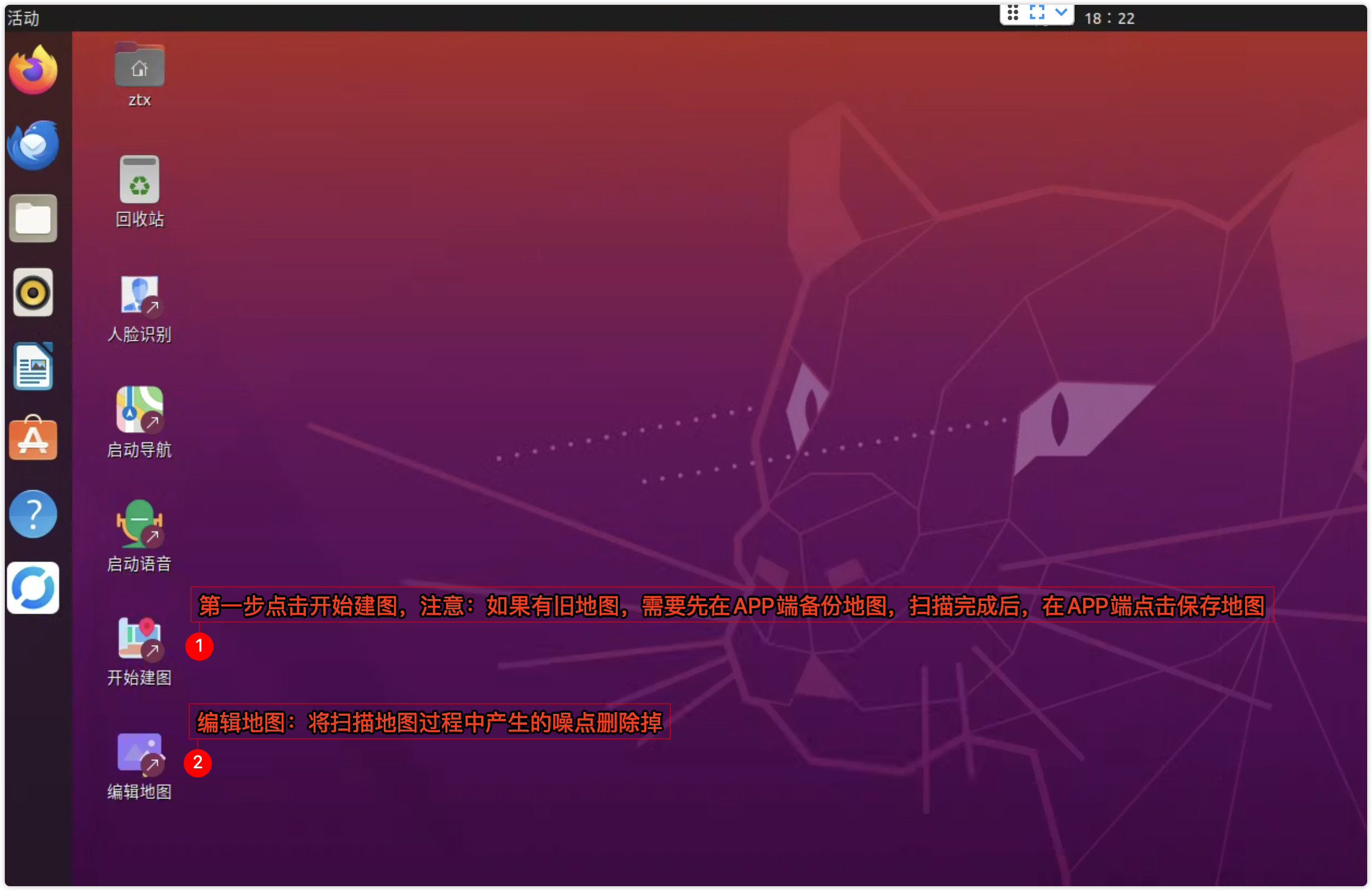
Feature 1 Start Mapping (scan and build scene map)
You must start mapping before first-time use. Click "Start Mapping" on tablet desktop, move robot, and the system scans/builds map in real time.
- Use regular locomotion control mode.
- Keep doors open while mapping (during navigation they may be open or closed).
- Prefer starting mapping/localization at places with three walls around.
- Watch screen in real time to avoid map drift (point cloud not overlapping walls indicates drift).
- Scan as complete as possible and ensure map boundary is closed.
- Keep map clean: remove movable obstacles and bystanders; operator should stand near wall and avoid random walking.
- Move slowly and uniformly; reduce repeated back-and-forth; prioritize major passable areas.
- The robot's initial position during mapping becomes default relocalization start point; power on/start near this point before tours.
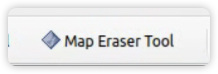
- For noise and movable obstacles, erase with left mouse in "Edit Map" using MapEraserTool; use right mouse to add obstacles only when necessary.
- After mapping, do not close mapping page. Save map from app first, then close.
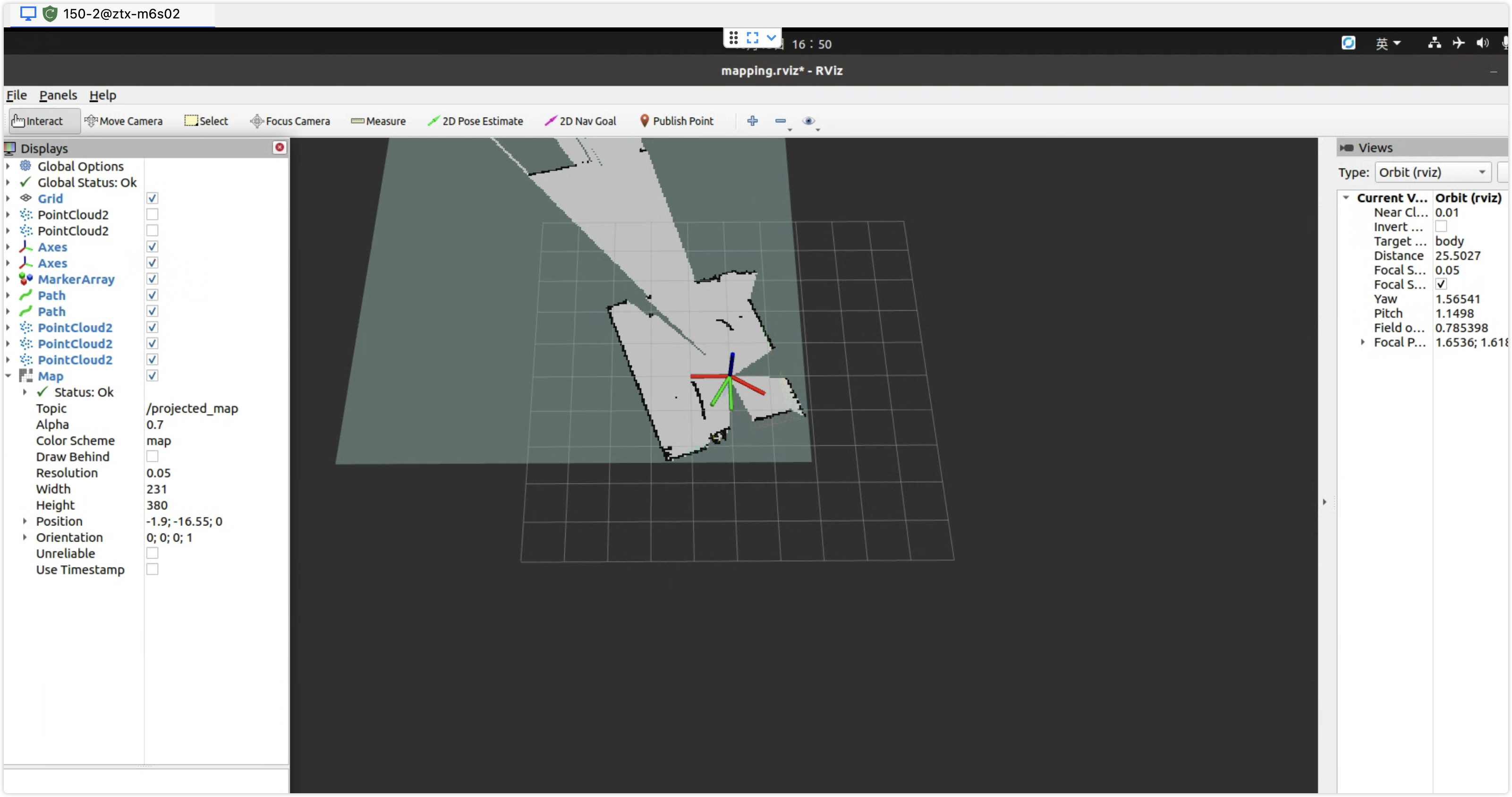
Feature 2 Save Map (migrated to APP side, refer to Save Map above)
After mapping, do not close scan window. Click "Save Map" in APP first, then close mapping page.
- After scene scanning is complete, do not close mapping page.
- Click "Save Map" in APP.
- Close mapping page only after successful save confirmation.
Feature 3 Edit Map (clean noise and movable obstacles)
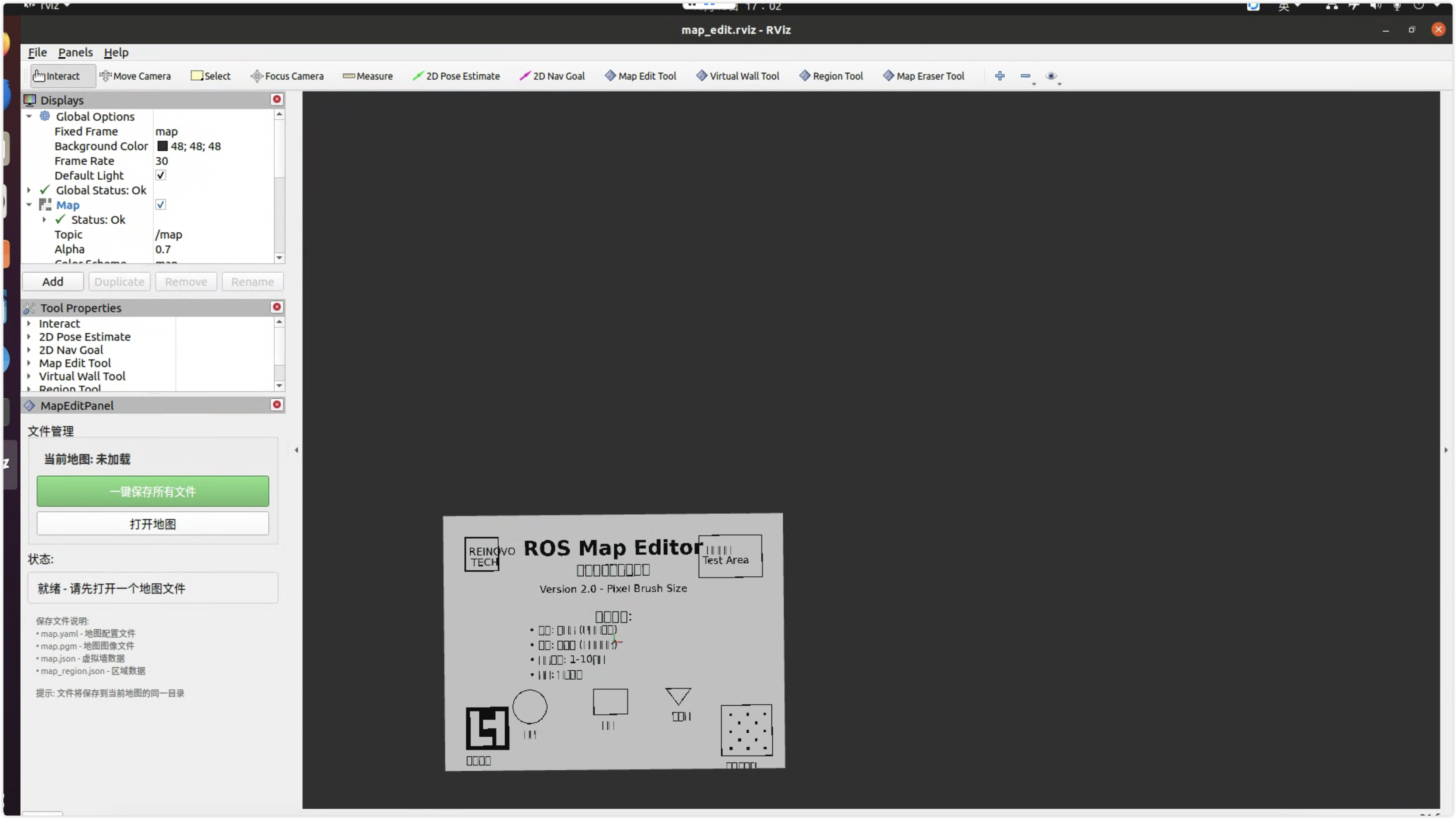
After double-clicking "Edit Map" and entering the editor:
- Click Open Map and select target map.
Map path: robot/DaoLan/map/map (absolute path /home/ztx/robot/DaoLan/map/map).
- After loading, use MapEraserTool:
- Left click: erase noise and movable/incorrect obstacles (temporary objects, pedestrians).
- Right click: add obstacles only when needed.
- Keep fixed structures: do not delete fixed walls/columns.
- Shortcuts: Ctrl + + to enlarge brush, Ctrl + - to reduce; range 1~10 px.
- After editing, click Save All Files, then close after success prompt.
Feature 4 Start Navigation and Localize (required before every tour)
Before each tour, start navigation first (double-click “Start Navigation” on the tablet desktop, or tap Start Navigation in APP Map Management). Then complete localization so the LiDAR point cloud aligns with map walls, using either method below:
Method A: APP Map Tap Localization (recommended on site)
- Open the APP live navigation map full-screen page.
- Tap Locate → it becomes “Tap map to locate”.
- Tap the robot’s approximate current position on the map, wait for completion, and confirm the point cloud aligns with walls.
See 9. Map Tap Localization above.
Method B: Tablet RViz 2D Pose Estimate
After startup, move the robot in circles/paths to scan surroundings, and click 2D Pose Estimate multiple times until the point cloud aligns with map boundaries.
11. Other Feature Entrances
Besides navigation, the Basic Applications module also provides:
- Face Recognition: recognize registered persons and execute corresponding actions.
- Dynamic Face Interaction: when a person or stranger is detected, AI proactively speaks configured content (requires voice interaction enabled first).
- AI Realtime Voice: realtime voice assistant (API key / voice / role / camera streaming). See 3. Basic Applications · AI Realtime Voice above, and the full guide AI Realtime Voice Guide.
- AI Realtime Voice Guide — API key, voice, role, camera, start/stop (Chinese).
- Unitree G1 Robot Motion Choreography Quick Start Guide
- Fengyun Intelligent Control Face Recognition Quick Start Guide
- Dynamic Face Interaction Mode Quick Start Guide
Navigation Feature - Concise User Guide