XFYRobot-APP Network Setup Guide
The Android XFYRobot app connects the robot backpack to Wi-Fi, disconnects or switches networks, and shows the IP. You can also open Home with a known IP. The app can be used in Chinese or English. After setup it writes the IP and checks that the phone and the backpack are on the same Wi-Fi. Home includes the original web features.
1. Scan and connect
After the first install, opening the app shows this screen and starts scanning for the backpack over Bluetooth. The top-right button switches between 中文 and EN. Found backpacks appear below. Tap one to connect. While it connects, the status reads Connecting, and you can tap Cancel. After Bluetooth connects, the Wi-Fi page opens on its own.
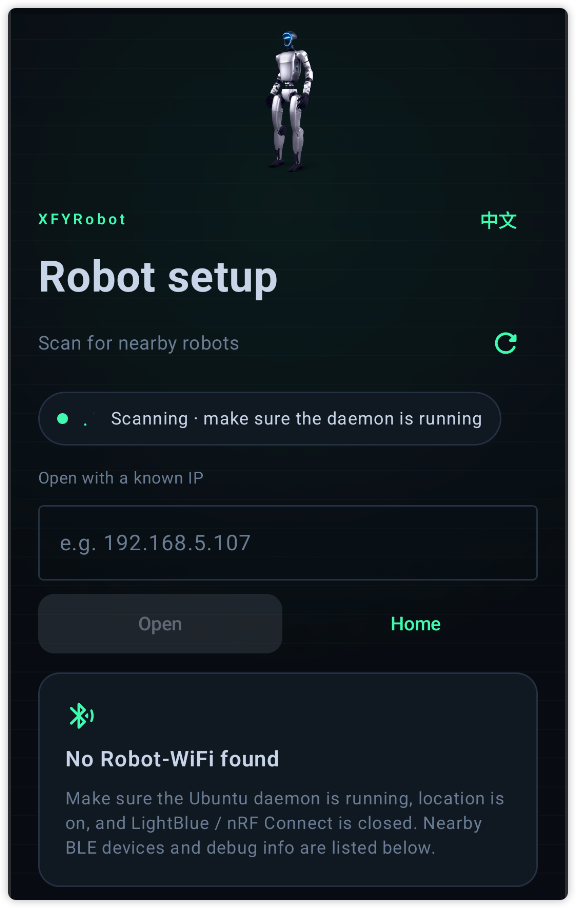
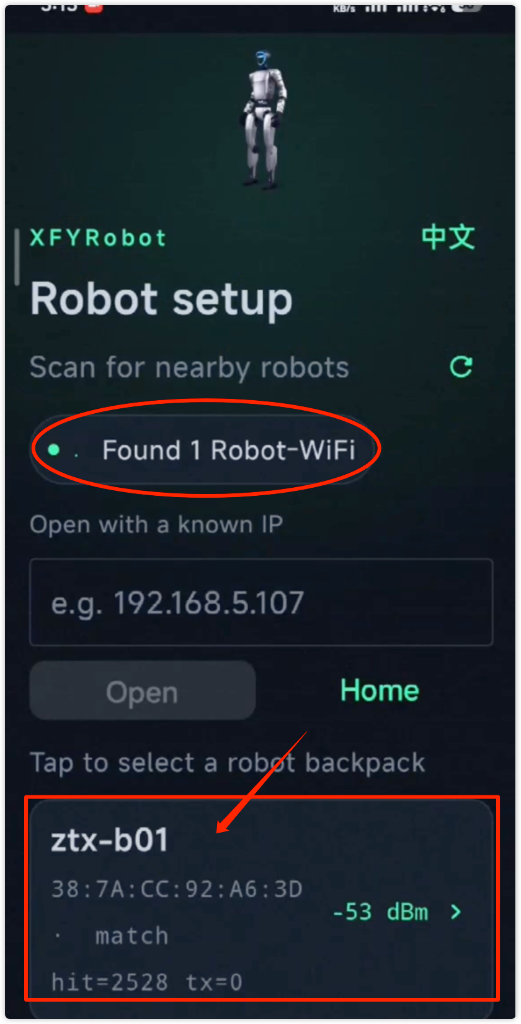
- If nothing is listed, tap the refresh icon.
- If a permission screen appears, tap Allow and turn Bluetooth on. If it asks for location, turn on the system location switch. Location is only used to scan Bluetooth.
- If you already know the IP, enter it under Open with a known IP, for example
192.168.5.107, and tap Open. - Home opens the page. Before setup is finished, you can also enter the robot address in the page settings.
2. Connect the backpack Wi-Fi
The top shows whether Bluetooth is connected, the current network name, and the IP. Under Networks, tap the Wi-Fi you want.
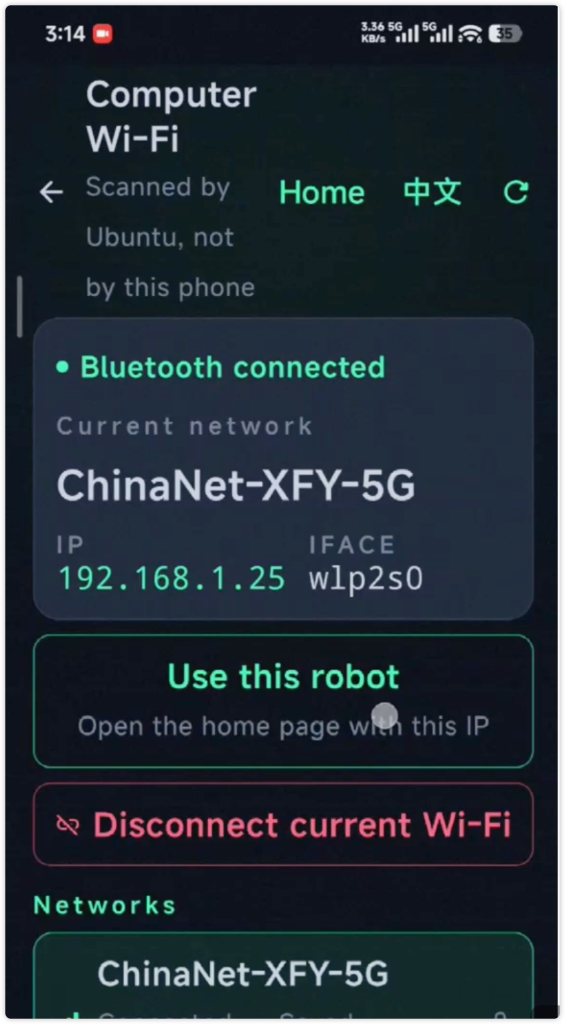
- Selecting a network starts connecting. A secured network asks for the Wi-Fi password, which can be shown or hidden. A saved network can use Connect saved.
- When it connects, the current IP is shown and the app opens Home. First-time setup is done, and the IP is written for Home.
- If you are still on this page, tap Use this robot to open Home with the current IP, or tap Home at the top right.
- To switch networks, tap Disconnect current Wi-Fi, confirm, then pick another. You can still tap a network while the list is refreshing. If the list is empty, pull to refresh or tap the icon.
- The back arrow returns to the backpack scan.
3. Put the phone on that Wi-Fi
If the backpack is already on Wi-Fi and the phone is on another network, Home cannot open. The app stops on “Connect the phone to the same Wi-Fi” and shows the backpack computer’s Wi-Fi name, its IP, and the phone’s current network.
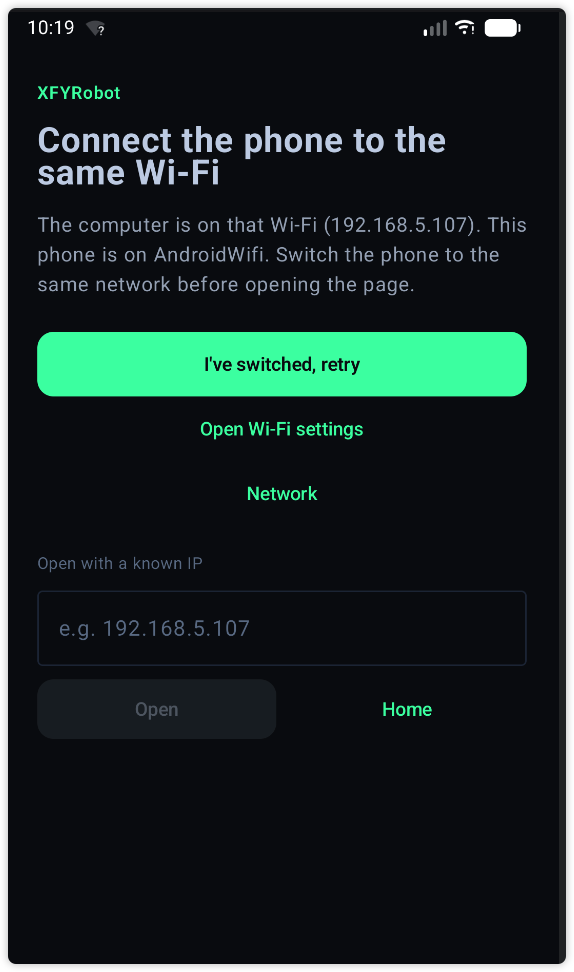
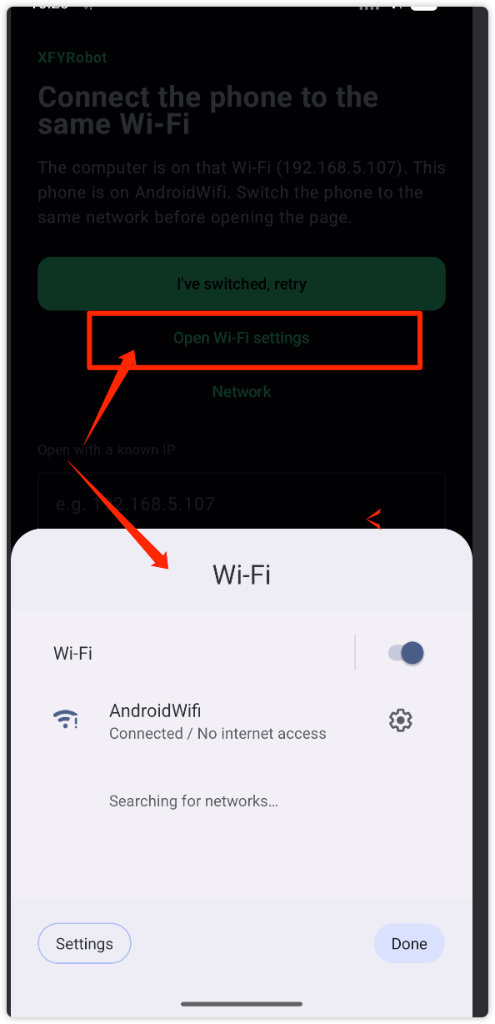
- Tap Open Wi-Fi settings, join the same network as the backpack, then return to the app.
- Tap I've switched, retry. After the check passes, Home opens.
- Network goes back to step 1 so you can scan again and pick another Wi-Fi.
- You can also enter a known IP and tap Open, or tap Home.
The next time you open the app, Home opens directly when the phone and the backpack are still on the same Wi-Fi. Otherwise this page appears first.
4. Language, known IP, Home
- Language: the setup pages use 中文 or EN at the top right. After you reach Home, the language matches the one saved on that page.
- Known IP: a bad format shows “Enter an IP like 192.168.5.107”. If the phone is not on that network, you land on the page in the previous section.
- Home: after setup, Home is the navigation page, with the original web features. The IP is already written. You can change the robot address again in the page settings.
5. Set up again, switch the network, or view the IP
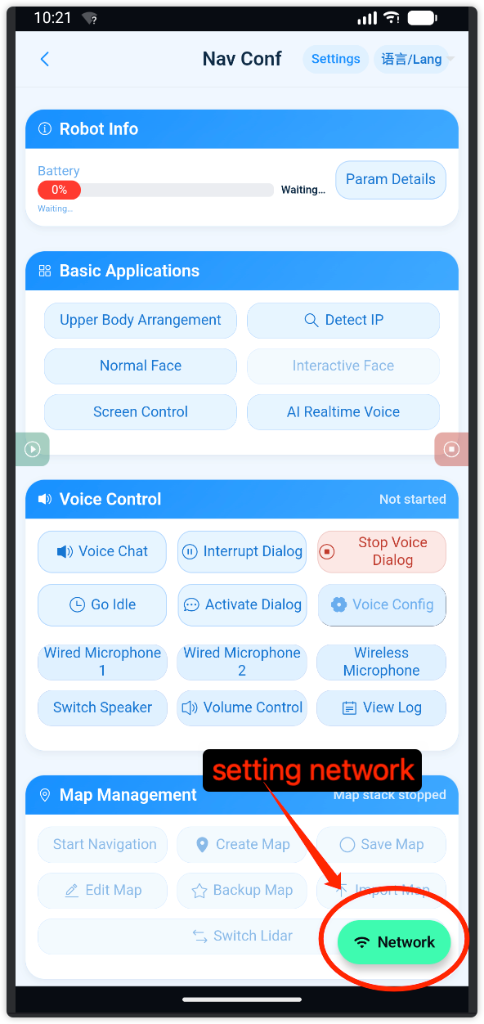
After the network is already set up, opening the app goes to Home. To view the IP or change the backpack network, tap the green Network button to open the setup screen.
6. Common problems
- No backpack below: turn on Bluetooth and location, and allow the app’s Bluetooth and location permission. Stay near the robot, then tap scan again.
- Stuck on Turn Bluetooth on or Turn location on: tap the button on that screen. Scanning starts when you return.
- Stuck on Connecting, or connection failed: tap Cancel, then tap that backpack again.
- Wrong password or connection timed out: enter the password again. A network used before can use Connect saved.
- The Wi-Fi list is empty, or the scan timed out: pull to refresh, or tap the icon at the top right.
- Disconnect timed out: tap Disconnect current Wi-Fi again.
- Bluetooth dropped, reconnecting: stay near the robot until it says Bluetooth connected, then pick a network.
- Home will not open: put the phone on the same Wi-Fi as the backpack, then tap I've switched, retry. A known IP looks like
192.168.5.107.